

MY COMPUTER WASN’T OUT OF STORAGE —
MY CLOUD WAS!
by Cary and Patty ~ My Simply Sage
Well, this was not supposed to become another article. And I apologize for the length, but again, getting to the bottom of all of this was lengthy and necessary, at least for me. I’m just trying to put it down in writing so the next person will have an idea of what is going on and not just assume that their computer does not have any storage space available. My computer is not new but, it is a Windows 11 model with a large hard drive and decent ram. That’s why I was concerned about the ‘storage’ issues. I know these articles will be of little use to some, but others will hopefully benefit.
So let’s continue.
After spending what seemed like forever figuring out where the pictures on my phone actually lived, I had just about convinced myself that I finally understood this whole storage and cloud business.
Now my computer situation pops up. “Cloud Storage is Full”
So Here We Go Again
Your phone and computer each have their own storage.
Cloud storage is another place.
Syncing keeps things connected.
And a backup keeps another copy somewhere safe.
Simple enough.
So what happened to my computer storage?
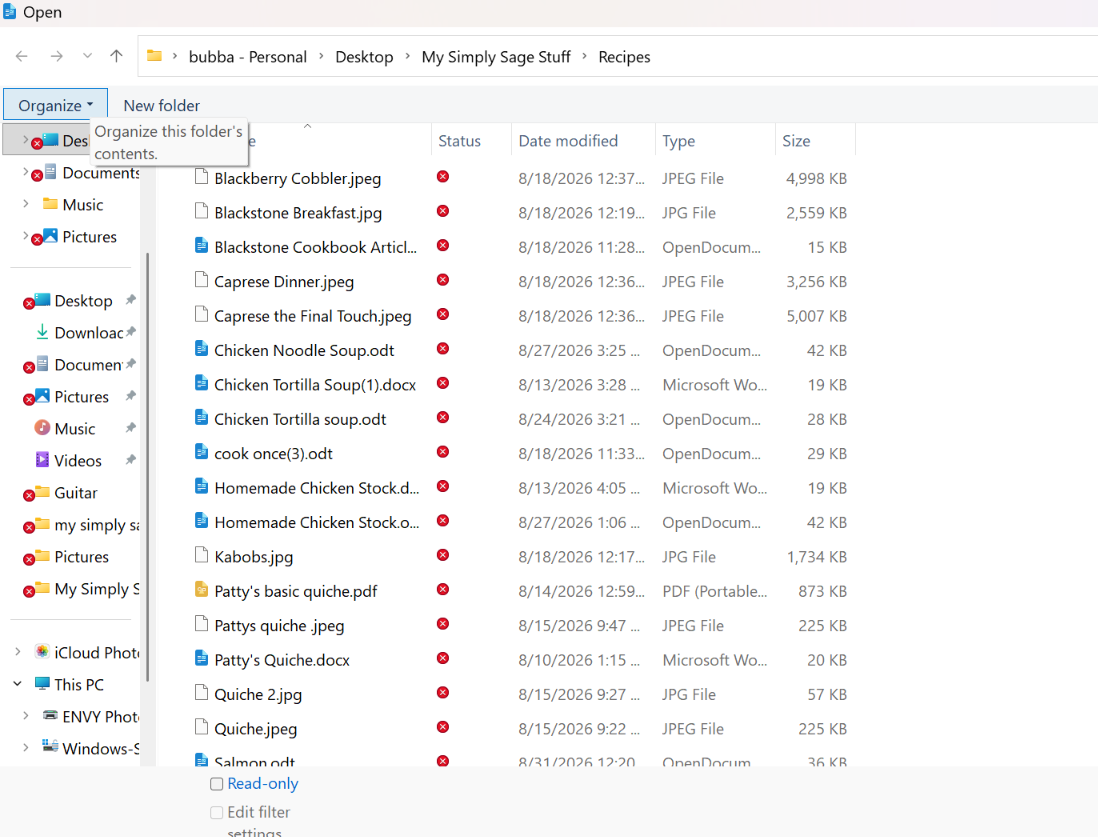
RED Xs everywhere.
Folders had red Xs. Pictures had red Xs. Documents had red Xs. Some of the files for My Simply Sage had red Xs.
What the heck had happened?
THEN CAME THE MESSAGE
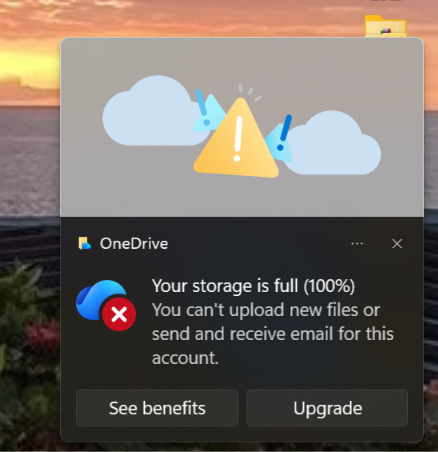
Microsoft OneDrive was telling me:
“Not enough cloud storage.”
My OneDrive account came with 5 GB of cloud storage at no charge. Five GB may sound like a lot, but once things like Desktop, Documents and Pictures start being synchronized to it, that space can disappear pretty quickly.
And, of course, right there was an opportunity to Upgrade and buy some more storage.
Now I had a pretty obvious question. Was my computer actually full?
We checked. Nope. Not even close.
My Lenovo computer has a 951 GB drive (That’s almost 1 TB. That’s huge for a home computer.) and I had about 815 GB still available.
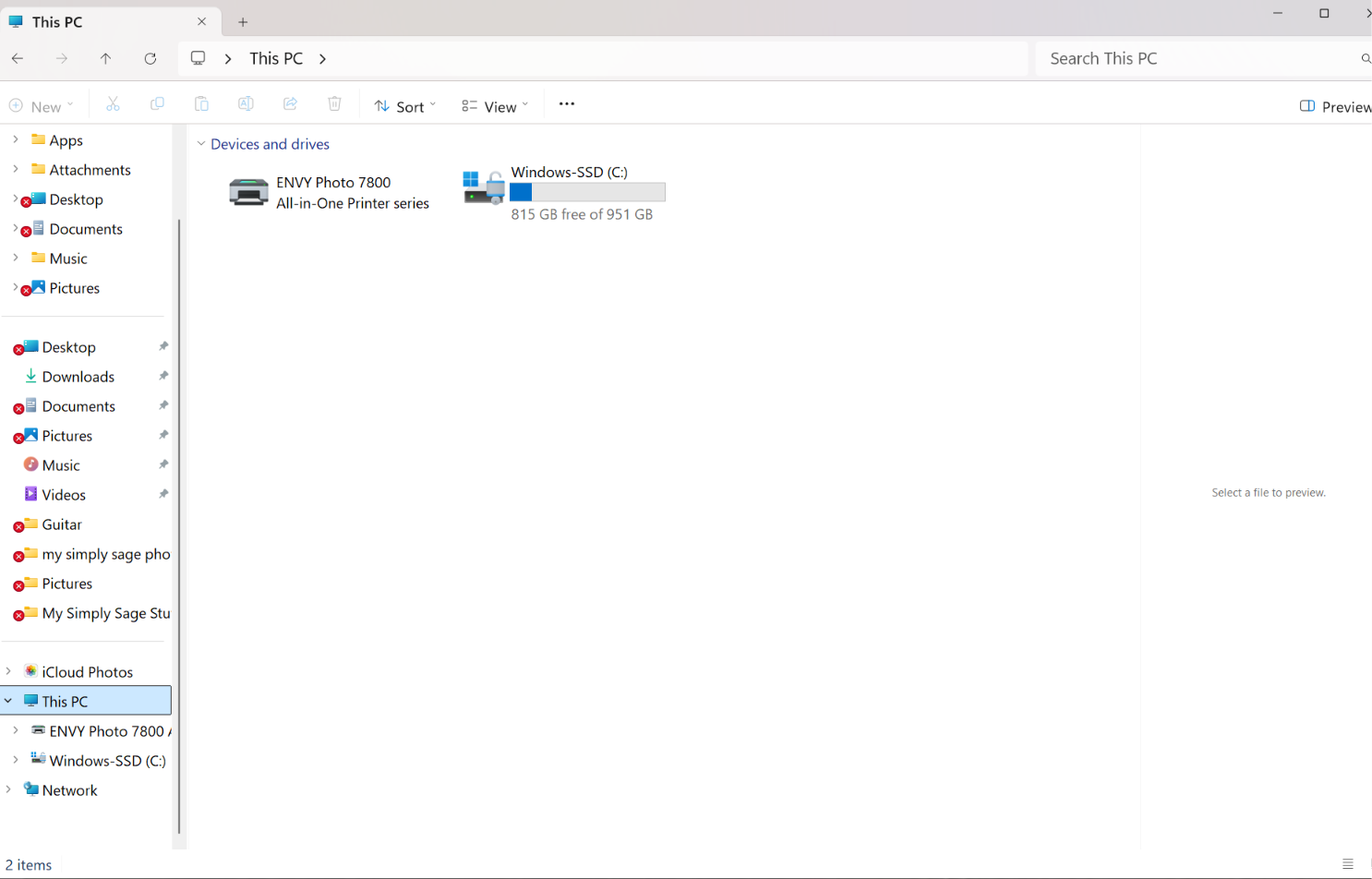
Think about that for a minute. My computer had an enormous amount of empty storage available.
My computer wasn’t out of storage. My cloud was. But looking at my Desktop, you certainly couldn’t tell the difference.
That was when this became another learning experience.
WHAT DID ALL THOSE RED Xs ACTUALLY MEAN?
My first reaction was that something had happened to my files. Were they damaged? Were they gone?
Were they stuck somewhere in the cloud? Could I still use them? Red X’s was very disconcerting!
(Just a footnote here. I am being assisted by AI here to help walk me thru the process of figuring things out.)
Rather than guessing, we tried something. I opened one of the files showing a red X . It worked.
We opened a document with a red X. It worked too.
Then we opened photographs carrying those dreaded red Xs.
They worked.
That was a pretty important discovery for me.
The red X wasn’t necessarily telling me that the file itself was bad or gone. In my situation, it was just telling me that OneDrive had a synchronization problem.
And the problem was pretty simple:
My OneDrive account didn’t have enough cloud storage to synchronize everything it was being asked to synchronize.
My files and my cloud-storage problem were not the same thing.
OH BOY, I THEN DISCOVERED MY DESKTOP WASN’T QUITE WHAT I THOUGHT IT WAS (Ya, that doesn’t make sense either, does it?)
Here’s where this got really interesting.
I’ve always thought of the Desktop as, well…
The Desktop.
The screen sitting in front of me with all my folders and little icons on it.
Except Windows can have special folders called Desktop, Documents, Pictures and so on… and OneDrive can become involved in storing and synchronizing those folders.
When we looked at where my Desktop was actually located, we found this:
C:\Users\bubba\OneDrive\Desktop
There it was.
OneDrive was right in the middle of my Desktop.
I had plenty of room on my computer, but my ‘Desktop’ was connected to a cloud-storage system that was telling me it didn’t have enough room.
Now things were beginning to make a little more sense.
GREEN CHECKS, RED Xs AND LITTLE CLOUDS
There were all those little symbols next to the files. Some had green checks. Some had red Xs. Some had a little cloud. It looked like somebody had decorated my computer for Christmas.
What I finally learned was that these were OneDrive status symbols.
A green check, for example, could tell me that a file was available locally on the computer.
But here’s something else that confused me:
A green check did NOT mean that the item would necessarily appear on the Desktop I was currently looking at. (If that doesn’t scramble your brain, nothing will!)
Okay, so we changed Windows to use a different local Desktop folder, but some perfectly good files were still sitting in the old OneDrive Desktop.
So now we had two things called Desktop.
Wonderful, just Wonderful.
THIS IS WHERE I STOPPED PUSHING BUTTONS
At this point it would have been pretty easy to start deleting things, freeing up space, disconnecting OneDrive or buying more cloud storage just to make the warnings disappear.
But I didn’t. Instead, I went back to the rule I had just learned in my first storage article:
COPY → VERIFY → DELETE
Except this time I didn’t even get to the DELETE part.
I stopped at:
COPY → VERIFY
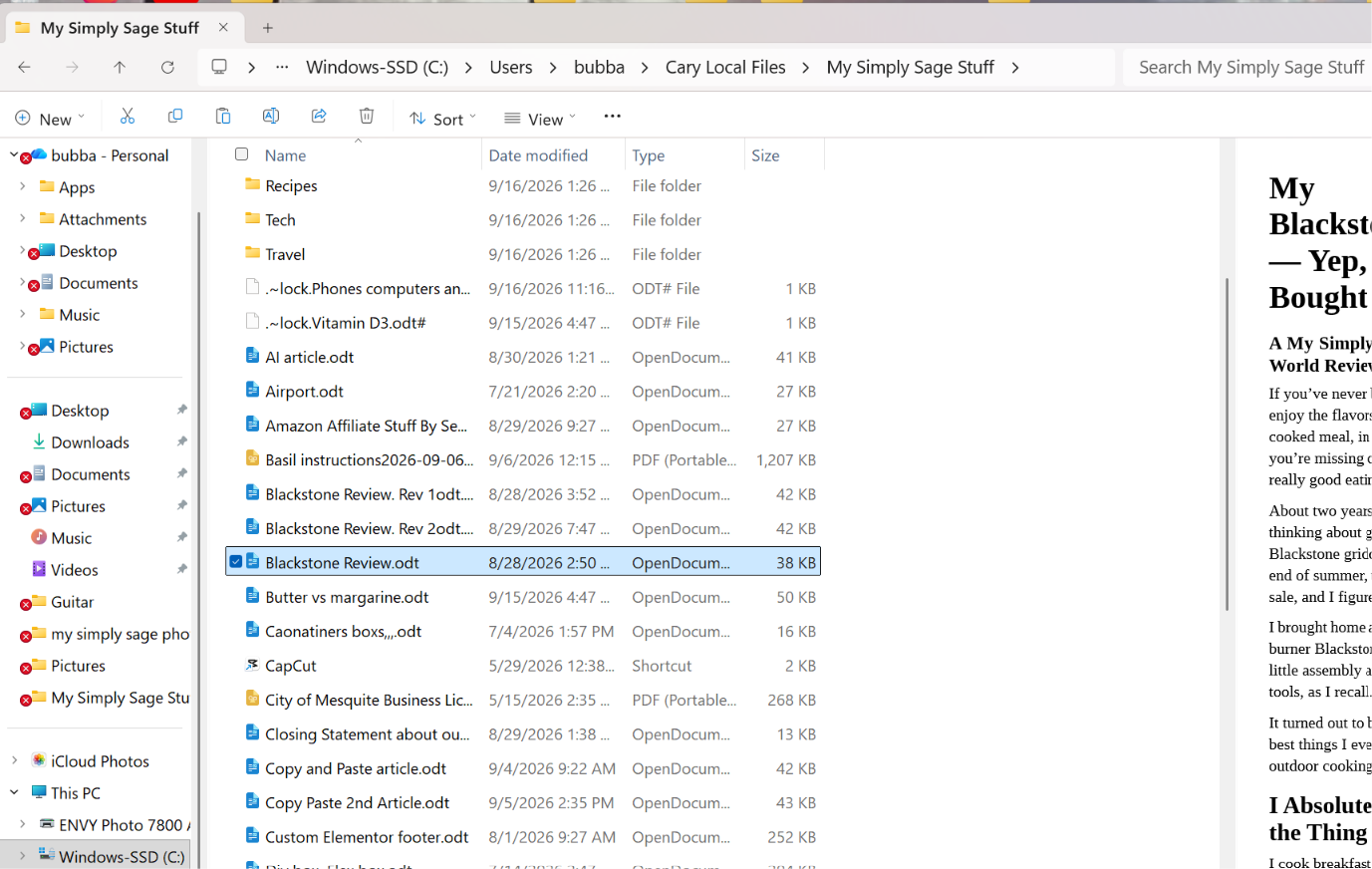
With the help of AI directing me, I created a new folder directly on the Lenovo called:
Cary Local Files
That folder was outside OneDrive.
Then we began copying the important folders into it. Not moving them. Not deleting the originals.
Copying them.
Then came the most important part.
We didn’t simply look at the filenames and assume everything was okay. We opened things.
We opened My Simply Sage documents. We opened photographs. We checked files that had previously shown those red Xs.
They all worked. So, only after we knew we had good local copies did we begin changing anything.
THEN WE TOOK BACK THE DESKTOP
Windows showed us that the current Desktop showing on my computer was located here:
C:\Users\bubba\OneDrive\Desktop
We changed the Desktop location back to the computer itself:
C:\Users\bubba\Desktop
And suddenly File Explorer showed something I hadn’t seen there before:
Desktop — Stored locally.
No red X.
But we weren’t quite finished.
Some of the things from my old Desktop weren’t showing on the new Desktop.
Why? Because they were still sitting in the old OneDrive Desktop folder.
So we copied the things we wanted back onto our new local Desktop.
And there they were. Stacked neatly along the left side of the screen like somebody had just unloaded a moving truck in the living room. At that point I didn’t care.
They were there.
SO DID I TURN OFF ONEDRIVE?
No. Not yet.
And I think this may be one of the most important lessons from this whole adventure.
Once we knew OneDrive was involved, it would have been tempting to just shut the darn thing off.
But my Documents and Pictures were also involved with OneDrive.
So we’re not going to disconnect anything until we know exactly where those files are and have verified copies of anything important.
And we’re not going to start deleting things from OneDrive just because it says it’s full.
There’s another step I want to take first.
A REAL BACKUP
One thing became pretty obvious during all of this.
Making another folder on the Lenovo protects me from some mistakes, but it doesn’t protect me if something happens to the Lenovo itself.
If the computer’s drive were to fail, both copies could disappear together.
So before this story is over, we’re going to make a proper copy of the important files on an external hard drive. External hard drives aren’t terribly expensive, especially compared with what it would cost me to lose years of pictures and important files. Pretty cheap insurance I think.
Then we’ll know we have another copy that isn’t dependent upon the Lenovo or OneDrive.
Only after that will we decide exactly what we want OneDrive to do—or whether we want it involved at all.
WHAT HAVE I LEARNED SO FAR?
Probably this:
Don’t let a warning convince you that you understand the problem.
“Not enough cloud storage” did not mean my computer was out of storage. A red X did not automatically mean my file was gone. A green check did not mean something would necessarily appear on the Desktop I was looking at. And having a copy of something somewhere on the same computer is not the same as having a real backup.
Most importantly:
Don’t start fixing things until you know where your stuff actually is.
Look first. Copy what matters. Open the copies and make sure they actually work.
Then—and only then—start changing things.
That little rule from our first article is looking better all the time:
COPY → VERIFY → DELETE
And we’re adding another one around here:
VERIFY → THEN CREATE
Because if we’re going to tell somebody else how to do this, we’re going to make darn sure it actually works first.
THIS STORY ISN’T QUITE FINISHED
At this point my Desktop was back where I wanted it, and my important files had been copied and verified.
But Documents and Pictures were still involved with OneDrive. I still wanted a real backup on an external hard drive. And eventually I had to decide what I wanted OneDrive to do—or whether I wanted it involved at all.
That’s going to be the next part of this little adventure.
Because apparently understanding “the cloud” was only the beginning.
Stay Tuned.
(Please note: AI has been huge in helping me walk thru all of this. I am far from a computer expert and I still just barely understand some of the maneuvering. Without AI, good luck walking thru this forest. Also, AI has been very helpful to me in getting this article organized into something I hope can possibly help someone else.)
Simple is not where you start, simple is where you arrive! For this one…eventually.