
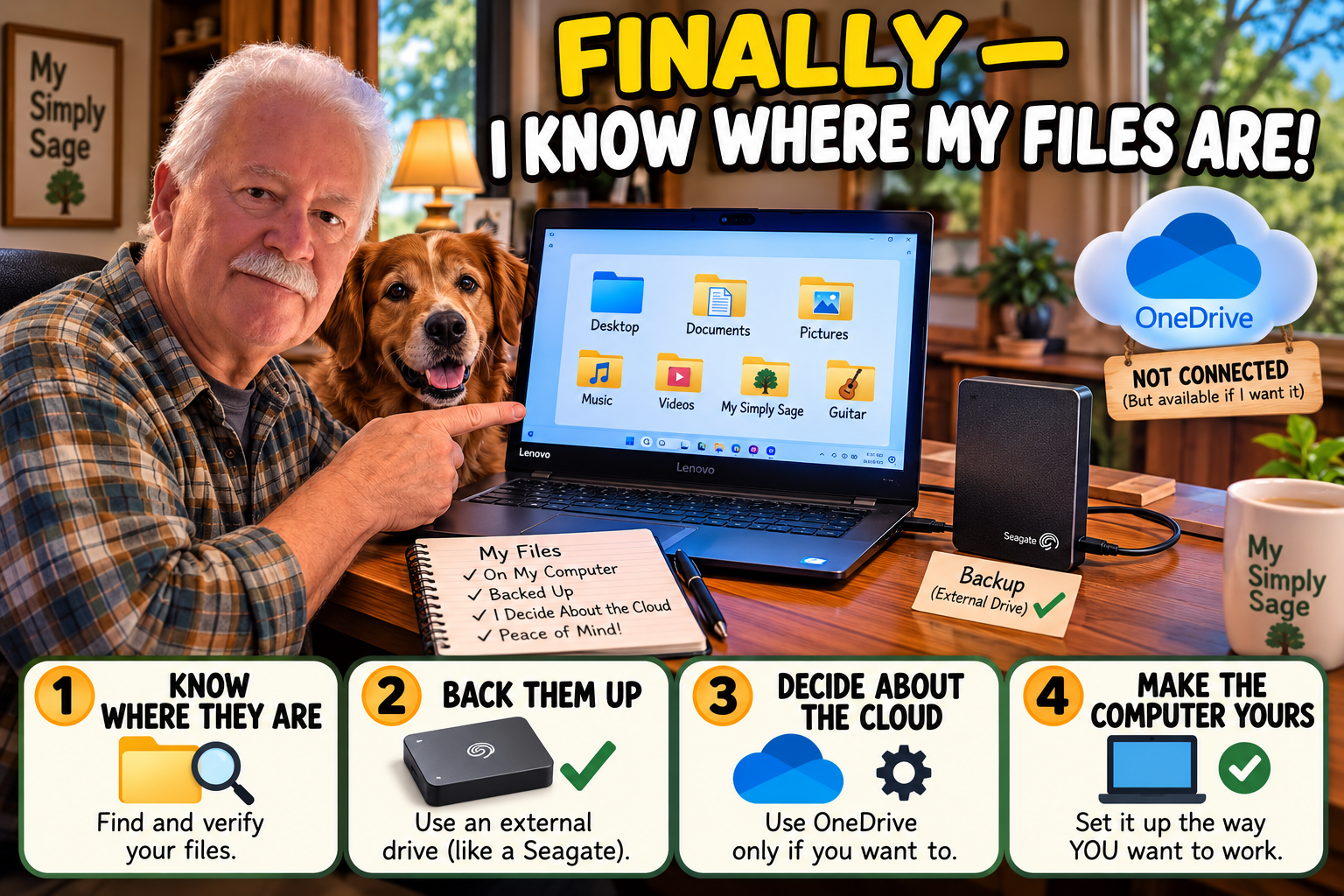
Finishing the Job — Getting Our Files Back Where We Wanted Them.
by Cary and Patty ~ My Simply Sage
I know this sounds complicated and a bit of overkill, but it was the best way I/we (remember my AI buddy) found to get it right. So bear with me and learn. Reading this a few times will probably help and in the end I think you will be a little wiser from reading it.
In the first two parts of this little adventure, we learned something that should have been simple.
The storage on your computer and the storage in the cloud are two different things.
My Lenovo had plenty of storage room. OneDrive didn’t.
Then we discovered something else.
Some of the folders I thought were simply on my computer, they were also involved with OneDrive. My Desktop, Documents and Pictures had become part of the cloud arrangement. This might seem a little hard to comprehend. It certainly was for me.
By the time we finished Part 2, alas, my Desktop was back where I wanted it and we had a much better idea of what was going on. But we weren’t quite finished.
I wanted my important files stored on my computer, I wanted a real backup on my external hard drive, and I wanted to decide for myself whether OneDrive needed to be involved at all.
So that became the final part of our cloud adventure.

First — Don’t Start Deleting Things. Please Don’t.
This may be the most important lesson we learned during this whole process.
When you find duplicate folders, red X’s, cloud symbols and files scattered between OneDrive and your computer, the temptation is to start cleaning. Don’t… Before moving or deleting anything, find out what you actually have. We used a very simple rule:
CHECK → VERIFY → CHANGE → VERIFY AGAIN
CHECK — Look before changing anything.
Find the folders and files involved and see where they are actually located.
VERIFY — Prove what you have.
Compare important folders and, when necessary, open some of the actual files. Don’t assume that two folders with similar names contain the same things. (This is where I sometimes used the old pencil and paper to help keep track of what I was seeing).
CHANGE — Only after you know what is safe.
Copy, move, rename, delete or disconnect only after you’ve verified what you’re working with.
NOW – VERIFY AGAIN — Make sure the change worked. Open the files from their new location. Make sure they’re really there before removing the old copy.
It isn’t complicated. It just requires a little patience.
OK, So What Were Those Red X’s?
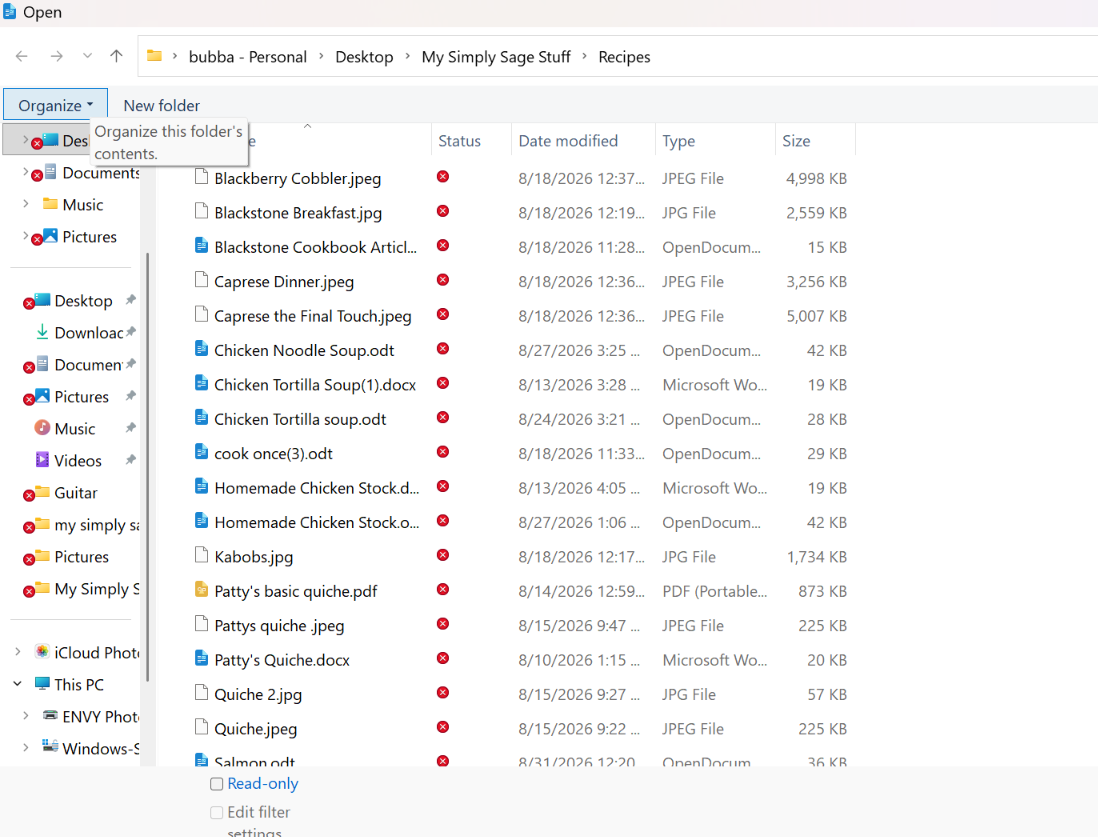
OneDrive had been showing red X’s on some folders and files.
A red X certainly looks like something terrible has happened. But instead of assuming the files were lost, we checked them. We compared the folders involved with the copies already stored locally on the Lenovo. One of my guitar folders, for example, contained 42 items. We verified that all 42 were safely present where I wanted them.
We did the same kind of checking with our My Simply Sage files and photographs.
In some cases the local folders actually contained more than the OneDrive versions.
There were also a few things we simply didn’t need anymore. The important point wasn’t the exact number of files.
It was this: We accounted for what mattered before we started removing anything.
That changed the whole job from “I hope this works” to “I know what I have.”
COPY First. DELETE Later.
Here’s another rule worth remembering.
If you aren’t absolutely sure whether something exists somewhere else:
Copy it first. (I cannot emphasize this point enough. Lost work cannot be easily replaced.) Then go to the new location and open it.
A filename sitting in a folder isn’t quite enough reassurance for me. If it’s important, I want to know that the file actually opens. Only after that verification should you consider deleting the old copy. That’s especially important when cloud synchronization is involved. Depending on how your cloud service is configured, deleting something in one place may affect copies elsewhere.
So we kept it simple:
COPY → VERIFY → THEN DELETE
That little sequence can prevent a very big mistake.
Now I Wanted a Real Backup
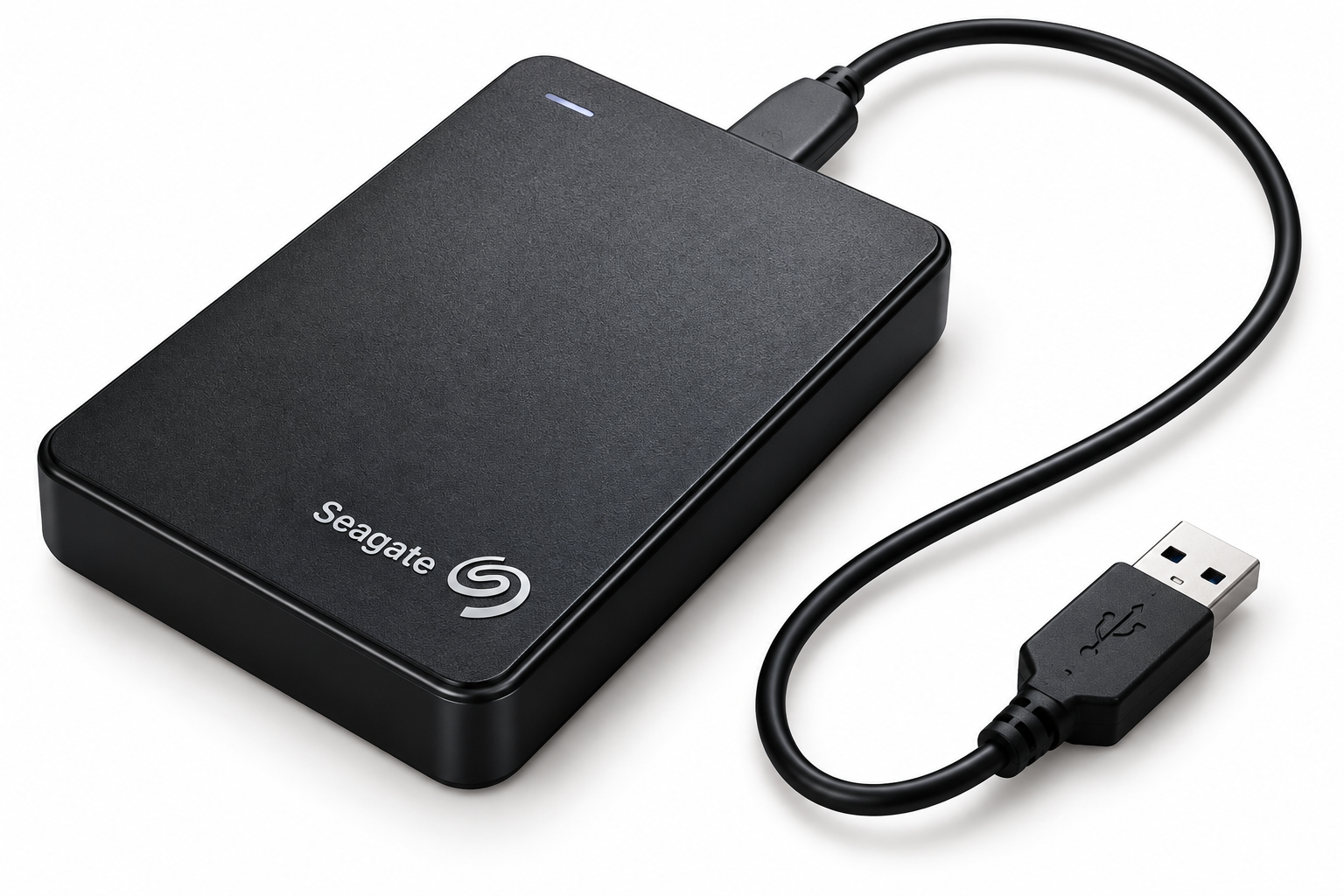
Once the important files were safely where I wanted them, I had another concern. I didn’t want the only copy of everything sitting on the Lenovo. And I didn’t want to consider OneDrive my only backup plan. I already had a 2-terabyte Seagate external hard drive, so I used that.
But instead of copying just a few folders, we also created something much more complete:
A Windows system image.
A system image is essentially a snapshot of the important contents of the computer at that point in time. It can be useful if the computer’s internal drive fails or Windows develops a serious problem.
Windows still has a tool for creating one under:
Control Panel → Backup and Restore (Windows 7) → Create a system image
Yes, it really does say Windows 7 on my Windows 11 computer. (Don’t ask me why, I just work here.)
Oh….Even the Backup Gave Us a Little Adventure
My first attempt didn’t go perfectly.
I had connected the external Seagate hard drive through a USB hub, and during the process Windows started making those familiar disconnect/reconnect sounds. (Little Bell like chimes). That was enough for me. I stopped. I disconnected the drive and connected it more directly and securely to the computer. Then I checked again. Windows recognized the Seagate properly, so I restarted the system-image process, and this time the backup completed successfully. Apparently it doesn’t take much to interrupt a heavy operation like a complete system backup. After my experience, I would advise you to connect the backup drive directly to the computer whenever possible.
But we still weren’t finished.
Remember our rule?
VERIFY AGAIN.
We opened the Seagate drive after the transfer (Using File Explorer) and confirmed that Windows had created the WindowsImageBackup folder.
Now we had evidence that the backup had actually been created. Then we safely ejected the external drive. That felt considerably better than simply seeing a message saying, “Backup completed.”
And Finally — OneDrive
At this point we had answered the questions that started this entire adventure.
My Lenovo wasn’t running out of storage. My small OneDrive cloud-storage allowance was.
We knew where the important files were. We had verified that they were safely stored locally.
And we now had an external backup. So there was one question left:
What did I actually want OneDrive to do?
For me, the answer was simple.
I didn’t want OneDrive managing these folders anymore.
So after everything had been checked and backed up, we unlinked OneDrive from the Lenovo.
That was my choice. I had plenty of onboard storage and a way to store info/data in a separate place (the hard drive), if I wanted but, it doesn’t have to be your choice.
And just for your information, the data on my external hard drive was not encrypted. If your backup drive isn’t encrypted, keep it somewhere safe where other people cannot easily access it. (Yes, mine is safely stored.)
OneDrive can be very useful if you want your files synchronized between computers and other devices, or if you like having certain files available through Microsoft’s cloud. There are lots of scenarios where this might be a good thing. There is nothing inherently wrong with using it. But remember, when you start loading the cloud with stuff, they will want more money from you.
I simply wanted to know where my files were and control how they were backed up.
Once I understood what OneDrive was doing, I could make that decision instead of having Windows make it for me.
So What Did I Actually Learn?
After three articles about something called “the cloud,” I think I’ve finally arrived at the simple part.
You don’t need to understand servers. You don’t need to become a computer expert. And you certainly don’t need to memorize every little cloud and check mark Windows puts beside a filename. You need to understand four things:
1) Understand where your files actually are. Are they on your computer? Are they in the “Cloud”, or both?
2) Decide what you want the cloud to do.
3) Make sure you have another copy.
4) Then make the computer work the way YOU want it to work.
Think about those things. That’s really it.
The cloud isn’t some mysterious place floating around above us. It’s somebody else’s computer storing your stuff. This can be incredibly useful. But your files are still your files. You should know where they are. You should know whether they’re backed up. And you should be the one deciding what happens to them.
Now, One Last Thing
This wasn’t a one-click cleanup.
I stopped several times because something didn’t look right. We checked folders. We compared files. We opened things. We backed up the computer. And only when we knew the important things were safe did we finally disconnect OneDrive.
That took longer. Yes, much longer, but when we were finished, we weren’t hoping our files were safe. We knew they were. And that may be the simplest lesson from this entire adventure:
VERIFY — find out what you actually know and where it came from — before you CREATE a conclusion or make a change.
Sometimes slowing down for five minutes saves you from spending five hours trying to recover something you shouldn’t have deleted in the first place.
And with that…
I think we’re finally out of the cloud.
I hope this article is a benefit to at least a few people. It took some time to finish, and the adventure getting here was, well, interesting. But if our (myself and my AI buddy) experience saves someone else a little of the frustration I encountered along the way—and makes their day a little easier when they’re finished—then it was worth telling the story.
NOTE: AI was a great help in getting me through all of the computer stuff and is a very good tool for anyone wanting a little help
Simple is not where you start, simple is where you arrive!