
Copy and Paste — Now Let’s Actually Use It
In our last article, we talked about Copy, Paste and that mysterious Clipboard. Now let’s put it to some good use.
We already learned that when we copy something on our computer, phone or tablet, the device temporarily holds what we copied on something called the Clipboard.
That’s nice to know. But what do we actually do with it?
As it turns out — quite a lot.
Now, we’re not going to try to cover every place you can use Copy and Paste. We’d be here all day for that. Instead, let’s take a look at a few simple, everyday examples.
Once you understand the basic idea, you’ll probably start finding all kinds of places where Copy and Paste can make things easier.
First, Remember the Basic Idea
When you copy something, you’re not taking the original away. You’re making another copy of it that you can put someplace else.
If you copy a sentence from an email, the original sentence stays in the email. If you copy a photograph, the original photograph stays where it was. If you copy a website address, the website certainly doesn’t go anywhere.
You’re simply telling your device:
“I want a copy of this so I can put it someplace else.”
That’s really about it.
Now, A Quick Word About Clicking
Before we go any farther, let’s clear up one little thing.
When we say “click,” we normally mean click the left mouse button once.
That’s the button you’ll use most of the time to select something, put the cursor somewhere or press a button on the screen.
When we want you to use the other button, we’ll specifically say “right-click.”
Right-clicking usually brings up a little menu of choices — and that’s often where you’ll find things like Copy and Paste.
And unless we specifically say “double-click,” one click is enough.
So:
Click = left button, once.
Right-click = right button, once.
Double-click = left button, twice fairly quickly.
It sounds almost too simple to mention. But if nobody ever told you, how would you know?
What About on a Phone or Tablet?
Of course, your phone or tablet probably doesn’t have a mouse.
If we say click on the computer, on a phone or tablet this usually means tap the screen once with your finger.
And when we say right-click, on a phone or tablet you’ll often touch and hold your finger on the item for a second or two. A small menu may appear with choices such as Copy and Paste.
So the basic idea is still the same. You just do it a little differently.
Computer: Click or right-click.
Phone or tablet: Tap or touch and hold.
The device may be different, but we’re still trying to tell it the same thing.
Copying Words from One Place to Another
Let’s say someone sends you an email containing an address, phone number or other information you want to put into a document.
You don’t have to type the whole thing again.
Just highlight the words you want to copy. Right-click the highlighted area and choose Copy.
Now go to the document where you want those words to appear.
Now click where you want to put the words. You’ll see the blinking cursor at that point. Right-click there and choose Paste.
There they are. The original words are still in the email, and now you have another copy in your document. The same basic idea works in lots of places.
Copying a Website Address
Here’s one we use all the time.
You’re looking at a website and want to send the page to somebody else.
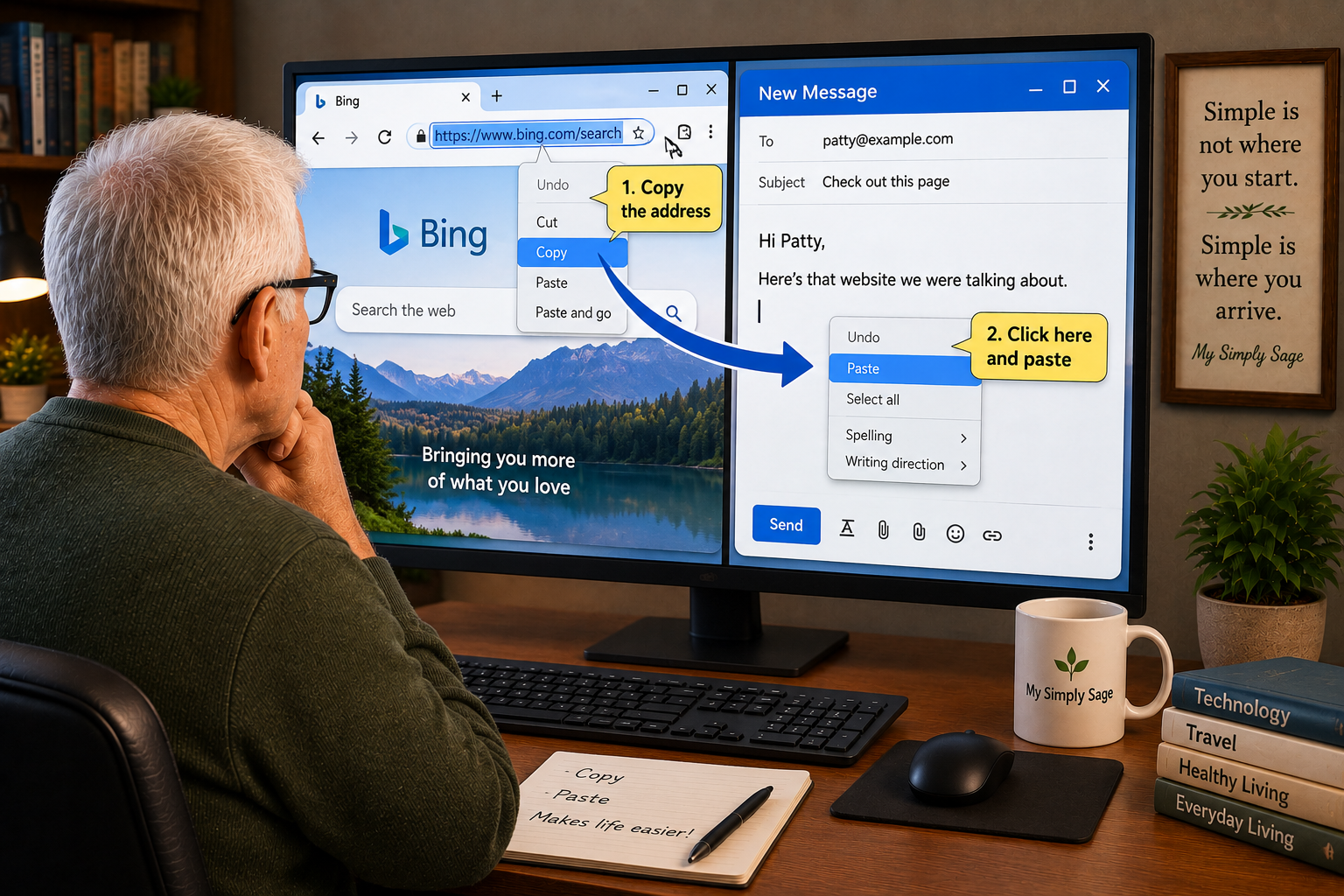
At the top of your browser is the address bar. That’s where you’ll see the website address for the page you’re looking at. It looks something like this:
Click anywhere on the website address. Usually the whole address will become highlighted.
If it doesn’t, you can put your pointer at the beginning of the address, hold down the left mouse button and drag across it until the address is highlighted.
You now have your highlight. Right-click it and choose Copy.
Now open your email, text message or wherever you want to put it and….
Left-click where you want the address to go. Then right-click and choose Paste.
You didn’t have to type that long, strange-looking website address and hope you got every letter, number, slash and dot correct.
And guess what? You just simply copied and pasted it. Easy peasy.
Copying a Photograph
Words aren’t the only things we can copy.
In many places on your computer, you can right-click a photograph or picture and choose Copy or Copy Image.
Then go to someplace that accepts pictures, right-click and choose Paste.
The important part is that the original photograph is still right where it started. You simply made another copy.
Not every website, program or device handles pictures exactly the same way. If Copy and Paste doesn’t work with a particular picture, don’t assume you’re doing something wrong. There may simply be another way to do it.
We’ll save that whole adventure for another day.
Copy Can Also Mean an Old-Fashioned Copy
Of course, computers didn’t invent copying.
You have a piece of paper — maybe a letter, receipt or insurance card. It could be anything. You want another paper copy of it. Or perhaps someone has asked you to send them a copy.
If your printer has a scanner/copier, making another paper copy is usually pretty simple.
Put the original face down on the scanner glass, usually lined up with the marked corner. Close the lid, choose Copy on the printer, select black-and-white or color if needed, and press Start.
Out comes another paper copy.
And notice something familiar.
The original is still there. In the copy area. Just like you placed it.
That’s really the same idea we’ve been talking about all along.
But what if somebody wants you to email that piece of paper to them? Or perhaps a website asks you to send them a copy of a document?
Now we need to turn that piece of paper into something the computer can send.
That’s called scanning.
You can scan that piece of paper and save it someplace on your computer for future use or reference. From there, you can email it or perhaps submit it online.
But….
We’re not going down that road today.
What About Cut?
You’ll often see Cut sitting right next to Copy and Paste.
There is one important difference.
Copy leaves the original where it is.
Cut is used when you want to move something from one place to another.
If you’re just learning this, Copy is usually the safer choice. The original stays where it was while you learn what happens next.
So, for the time being, stay away from Cut.
We’ll talk more about Cut another time.
That’s Really All You Need to Know for Now
Copy and Paste can do much more than we’ve covered here.
You can use it in emails, text messages, documents, online forms, photographs and all sorts of other places. But you don’t need to learn all of those things at once.
For now, remember this:
Copy means: Keep the original and make another one.
Paste means: Put that copy here, where you want it.
Whether we’re talking about a paragraph on the computer or an old-fashioned piece of paper coming out of the printer, the basic idea really isn’t that different.
And once you get comfortable with that idea, you’ll probably find yourself using Copy and Paste without even thinking about it.
Which is exactly where we want to end up today.
Keeping it simple.
Simple is not where you start. Simple is where you arrive.