
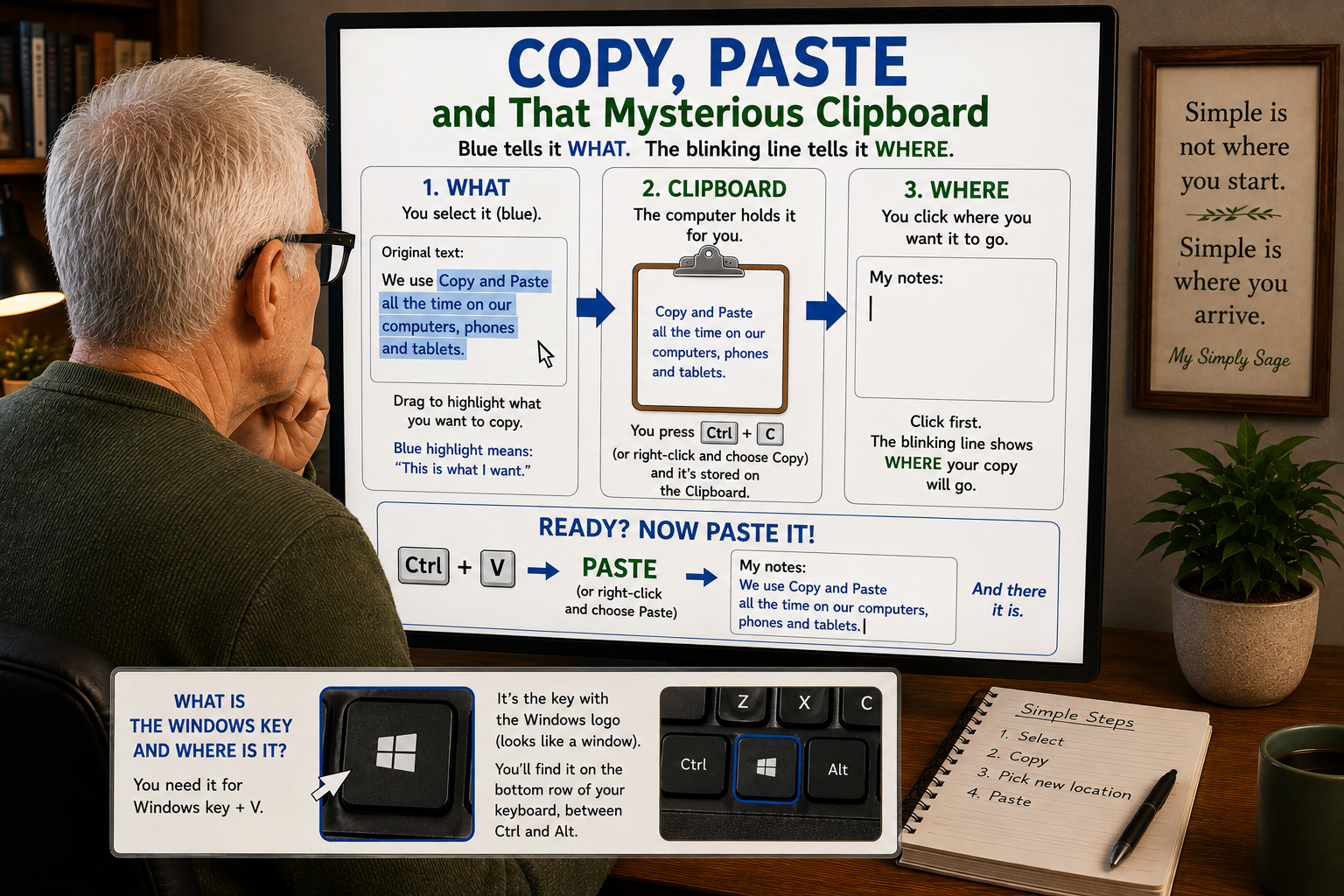
Copy, Paste and That Mysterious Clipboard
One of the simplest, most used computer tricks — once somebody actually explains it.
We use Copy and Paste all the time. On our computers, phones and tablets.
But if you’re like me, you may have learned how to do it without ever really knowing what was going on. So if you don’t know… let’s keep this simple.
First — The Blue Highlight
This may be the most important part.
Before you can copy something, you have to tell the computer what you want to copy.
On a Windows computer, put your pointer at the beginning of whatever you want. Hold down the left mouse button and drag across it. It could be a word, a phrase, a whole paragraph or perhaps an entire article.
What you select should become highlighted — usually in blue.
That blue highlight means: “This is what I want to work with.”
No blue highlight? You probably haven’t selected anything yet.
A Small But Important Warning
Once something is highlighted, the computer is waiting for you to tell it what to do with that selection.
If you press the Delete key, whatever you have highlighted will disappear.
Didn’t mean to do that?
Don’t panic. In many programs, immediately pressing Ctrl + Z will undo what you just did and bring it back.
That’s another reason the blue highlight is important. Pay attention to what is highlighted before you press another key.
Now Copy It
Once your item is highlighted, hold down the Ctrl key on your keyboard and press C.
Ctrl + C = Copy
Or, right-click with your mouse while your selection is still highlighted. A menu will appear with several choices. Select Copy.
Either way does exactly the same thing.
Nothing exciting happens. The words don’t disappear or jump across the screen.
Your computer simply puts a copy of them on something called the Clipboard.
OK, So What’s a Clipboard and Where Is It?
Don’t make this complicated.
Think of the Clipboard as a little temporary holding place inside your computer.
You say:
“Computer, hang onto this for me for a minute.”
That’s basically what Ctrl + C or selecting Copy does.
And where is this Clipboard?
Normally, you don’t see it at all. It’s simply working in the background, temporarily holding whatever you just copied.
If you want to actually see what’s on the Windows Clipboard, press:
Windows key + V
If Clipboard History is turned on, a small window will open showing the things you’ve recently copied.
So yes, there really is a Clipboard. You just normally don’t have to go looking for it.
Now — Where Do You Want It?
Now we have to tell the computer where we want our copied item to go.
If you’re working with words, go to your letter, email, document or other project and click where you want the copied words to appear.
Look for that little blinking vertical line.
That’s important too.
The blue highlight told the computer WHAT you wanted to copy.
The blinking line tells it WHERE you want to put it.
If you’re copying a photo or file into a folder, you won’t necessarily see a blinking line. In that case, the folder itself is your destination.
The Whole Thing — One Step at a Time
Let’s actually do one.
Pick a word, sentence or paragraph on your screen that you would like to copy.
1. Select what you want to copy.
Put your mouse pointer at the beginning of it. Hold down the left mouse button and drag across what you want.
When it is highlighted — usually in blue — you have told the computer:
“This is what I want.”
2. Copy it.
With your selection still highlighted, hold down the Ctrl key and press C.
Or, while it is still highlighted, right-click on it and choose Copy from the menu that appears.
Either way does the same thing.
Your selection is now sitting on the Clipboard waiting for you.
3. Go where you want to put it.
Move to the letter, email, document or other place where you want your copied item to go.
If you are working with words, click where you want them to appear.
Look for the blinking vertical line.
That’s your target.
4. Paste it.
Hold down the Ctrl key and press V.
Ctrl + V = Paste
Or, right-click at that spot and choose Paste.
Your copied item should appear.
That’s it.
Select it. Copy it. Pick the new location. Paste it.
Replacing Something Is Just as Easy
Here’s another handy use for that blue highlight.
Suppose you want to replace one sentence with the sentence you just copied.
First, copy your new sentence.
Then highlight the old sentence you want to replace.
Press Ctrl + V — or right-click and select Paste.
The highlighted old sentence is replaced by the new one.
Again, the blue highlight is telling the computer:
“This is what I want you to work with.”
What About Phones and Tablets?
Same basic idea. Different fingers.
On a phone or tablet, you normally touch and hold the words you want.
You’ll see selection handles that you can move with your finger to expand or shrink your selection.
A small menu will usually appear with choices such as Copy or Paste, depending on where you are in the operation.
Tap Copy.
Go where you want to put it, touch and hold again, and tap Paste.
The device is still doing essentially the same thing:
SELECT → COPY → CLIPBOARD → PASTE
No computer degree required.
The Simply Sage Version
If you remember nothing else, remember these two things:
The blue highlight tells the computer WHAT.
The blinking line tells the computer WHERE.
After that, Copy and Paste is really very simple.
Play around with it on some samples of your choice. Get comfortable with it. It probably will help you out a lot in the future.
Simple is not where you start. Simple is where you arrive.
Cary and Patty ~ My Simply Sage