
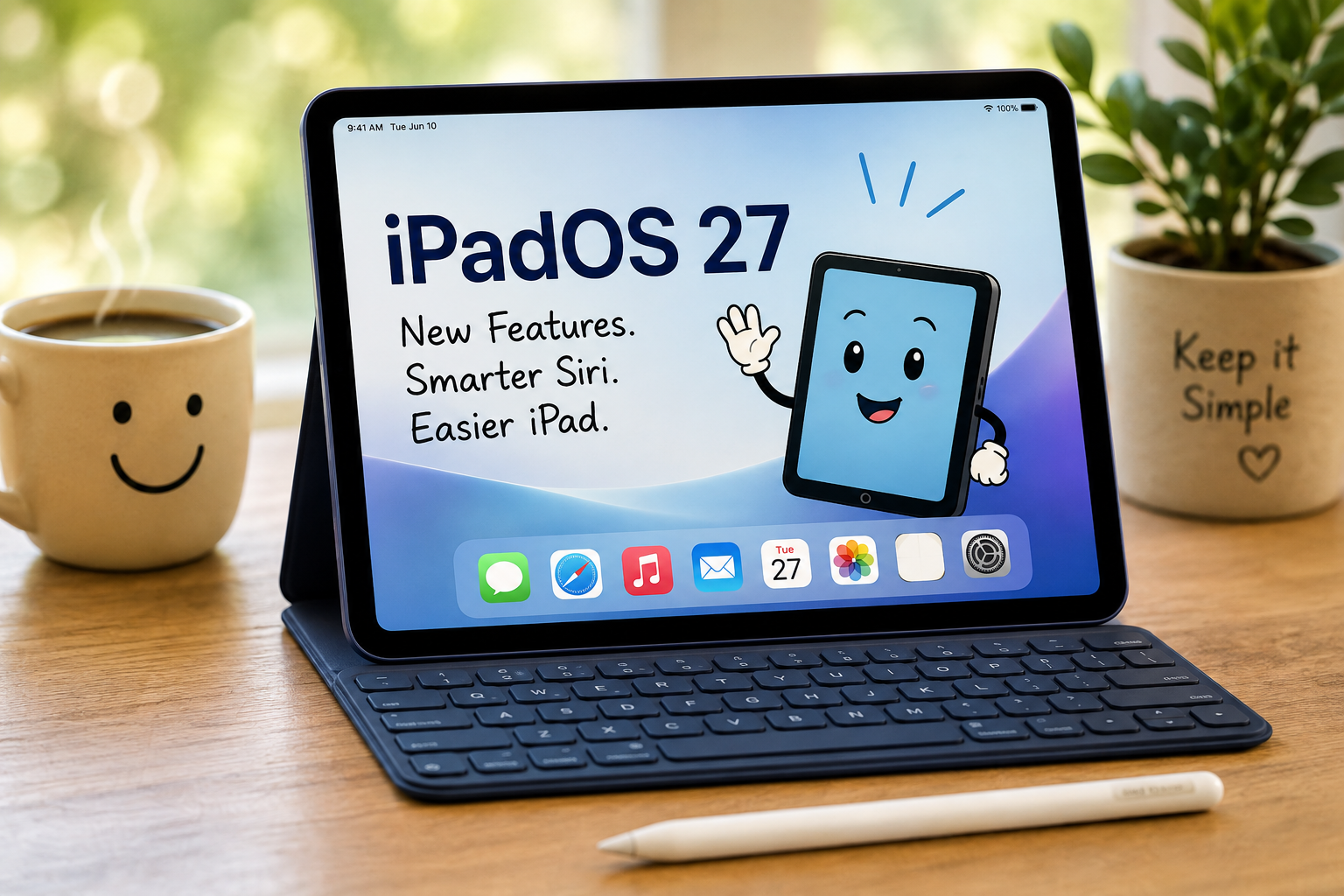
iPadOS 27: What’s New, What’s Useful—and What Can You Ignore?
by Cary and Patty ~ My Simply Sage
Apple has announced iPadOS 27, the next major update for the iPad. And if you read Apple’s description of everything it can do, you might have the same reaction we did:
Pretty cool. And pretty complicated.
But here’s the good news. You don’t have to understand every new feature, and you certainly don’t have to use them all. So let’s forget the technical jargon for a moment and look at iPadOS 27 the My Simply Sage way:
Will my iPad run it? What will actually help me? What might be fun to try? And what can I safely ignore?
A quick note before we start.
As of this writing, iPadOS 27 has been announced by Apple but has not yet been released to the general public. Some of its features—particularly the new Siri AI capabilities—are still being tested and may change before their final release.
The information in this article reflects Apple’s announcements and specifications as we currently understand them.
We’ll update this article if Apple changes important features, compatibility requirements or release information. In other words, we’ll tell you what we know—but we won’t pretend to know what Apple hasn’t finished yet.
First: Will My iPad Get iPadOS 27? According to Apple, iPadOS 27 will work on:
iPad — 9th generation and newer, including iPad (A16)
iPad mini — 6th generation and newer, including iPad mini (A17 Pro)
iPad Air 11-inch — 4th generation and newer
iPad Air 13-inch — M2 and newer
iPad Pro 11-inch — 2nd generation and newer
iPad Pro 12.9-inch — 4th generation and newer
iPad Pro (M4 and newer)
Don’t Know Which iPad You Own? That’s probably true for a lot of us.
Tap the ⚙ Settings icon on your iPad.
Then go to: a short distance down in the left panel = General → About
Look for Model Name.
That’s much easier than trying to remember what year you bought the dang thing. And when the update becomes available, your iPad will automatically know whether it can install iPadOS 27. You won’t have to memorize Apple’s compatibility list.
Now Here’s Something Important to Know: iPadOS 27 and Apple Intelligence aren’t the same thing. This is probably the most important thing to understand. Your iPad may be able to run iPadOS 27, the operating system, but that doesn’t necessarily mean it can use Apple Intelligence or the new Siri AI. The Apple Intelligence feature requires one of Apple’s newer, more powerful iPads. So don’t assume something is wrong with your iPad if you install iPadOS 27 and don’t see every new AI feature Apple advertises. Your iPad may be working exactly as it should but doesn’t have the capability to use/run some of the new stuff. OK. So will my iPad be able to use Apple Intelligence? According to Apple’s current requirements, Apple Intelligence and Siri AI on iPadOS 27 require:
An iPad with an M1 chip or newer, or An iPad mini with the A17 Pro chip
That sounds simple enough—unless you have absolutely no idea which chip is inside your iPad. And why should you? Let’s Find Out What You Have
Start here: ⚙ Settings → General → About Look for Model Name. Your iPad will tell you which model you own. If you want to check for Apple Intelligence itself, there’s an even easier place to look:
⚙ Settings → Apple Intelligence & Siri If your compatible iPad is updated and Apple Intelligence is available for your language and region, this is where you’ll find its settings. And if your iPad doesn’t support Apple Intelligence?
Do not panic—and don’t automatically start shopping. Your iPad may still run iPadOS 27 perfectly well. It simply won’t have all of the AI features. If your present iPad does everything you need it to do, the absence of Apple Intelligence isn’t automatically a reason to replace it.
My Simply Sage rating: CHECK WHAT YOU HAVE BEFORE YOU SPEND MONEY
So What’s Actually Useful?
This is where things get interesting.
1. A Much Smarter Siri. Apple says its new Siri AI will be considerably more capable than the Siri we’ve been accustomed to. According to Apple, Siri AI is being designed to carry on more natural back-and-forth conversations, answer broader questions, understand some of what you’re looking at on the screen, use personal context to find information and help accomplish tasks across apps. That sounds impressive. More importantly, some of it could actually be useful.
For many ordinary iPad owners, this may eventually become one of the most helpful improvements in the entire update.
Instead of having to learn exactly how the iPad works, we’re slowly moving toward simply telling the iPad what we want it to do. That could be a very big deal. But there’s an important word in all of this: Could. Apple says Siri AI will arrive as a beta for supported devices set to English later this year. Until the finished product is actually in people’s hands, we’ll reserve judgment on just how useful it really is.
My Simply Sage rating: POTENTIALLY VERY USEFUL — LET’S SEE HOW IT WORKS
2.Accessibility Improvements. This is an area that doesn’t always receive much attention in the flashy advertisements, but it may contain some of the most meaningful improvements. Apple continues to improve tools designed to make its devices easier to use for people who have difficulty seeing, hearing or physically interacting with them. For older adults in particular, accessibility settings are worth exploring—even if you don’t consider yourself someone who needs “accessibility.” Sometimes larger or easier-to-read information, captions, better visual assistance or other small changes simply make an iPad more pleasant to use. And that’s reason enough to use them. Check them out here.
⚙ Settings → Accessibility
My Simply Sage rating: WORTH EXPLORING
3. Apple Intelligence. There are plenty of AI features coming to Apple’s devices. Some will probably be genuinely helpful. Some will be interesting. And some may make you wonder why anyone thought you needed them. Our suggestion?
Don’t try to “learn Apple Intelligence.
Instead, wait until you have something you actually want to accomplish and see whether it can help.
Need something summarized? Try it.
Need help finding information? Try it.
Want Siri to help you accomplish something? Ask.
That’s a much easier way to learn AI than studying a list of 37 new features that you’ll probably forget by tomorrow morning anyway. And remember: Apple Intelligence and Siri AI will not be available on every iPad capable of running iPadOS 27.
My Simply Sage rating: LEARN IT AS YOU NEED IT
And What Can I Ignore?
Quite a bit. And that’s perfectly okay.
If Apple announces a clever new way of arranging windows and you don’t need it—ignore it. If there’s an advanced feature aimed at artists or professional users and you don’t create artwork—ignore it.
If there’s some sophisticated multitasking feature and you use your iPad mostly for email, reading, photographs, FaceTime and browsing the internet—ignore it.
The features are not going anywhere. You can always learn them later. There is no prize for knowing how to use every feature Apple puts on your iPad.
Should I Install iPadOS 27?
Eventually, probably yes, assuming your iPad supports it. Operating-system updates aren’t just about shiny new features. They also bring security improvements, bug fixes and other changes intended to keep your device current. But you don’t necessarily have to be standing at the starting gate on release morning. For many everyday users, waiting a little while after a major new operating system is released can be perfectly reasonable. Let the adventurous crowd discover the surprises first. Then update when you’re comfortable.
The My Simply Sage Bottom Line
Don’t look at iPadOS 27 as something new you have to learn. Look at it as a box of new tools. Some tools you may use every day. Some you might use once in a while. Some you’ll never touch.
And that’s okay.
Technology is supposed to make life easier. You don’t have to learn everything your iPad can do. Learn the things that help you do the things you want to do.
That’s keeping technology simple.