How to Take a Screenshot on an iPhone or iPad — And Find It Again!
by Cary and Patty ~ My Simply Sage
Ever wanted to save something you see on your iPhone or iPad while browsing? Maybe a recipe, a funny message, or something you want to show a friend. You can take a picture of what’s on your screen without using the camera. It’s called a screenshot. And it’s easy!
Step 1 — Find the Buttons
On an iPhone without a round Home button:
Find the Side button on the right side of your iPhone.
Find the Volume Up button on the left side.
Press both buttons at the same time, then quickly release them.
On an iPad without a round Home button, press the Top button and either Volume button at the same time, then quickly release them. The volume buttons may be on the top or side, depending on your iPad.
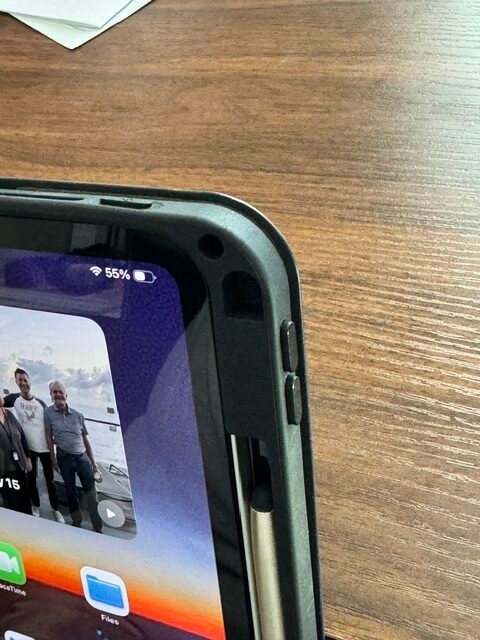
Have an iPhone or iPad with a round Home button?
Press the Home button and the Side or Top button together, then quickly release them.
Not sure which instructions to follow? Just look for the round Home button.
Step 2 — What Happens Next?
Depending on your iPhone or iPad’s software and settings, one of two things may happen.
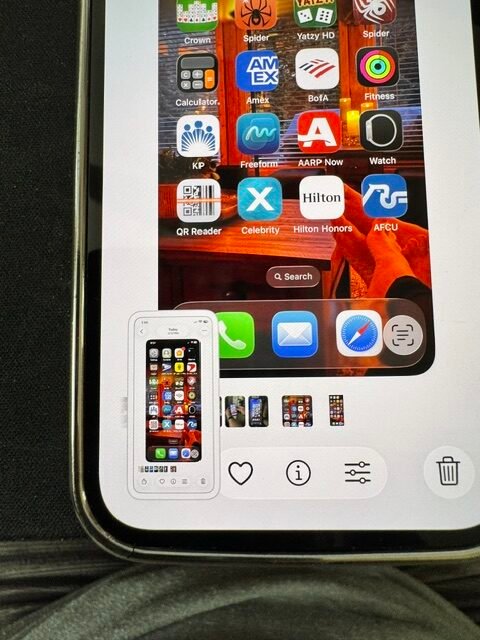
A small picture appears in the lower-left corner.
After a few seconds, the picture disappears. Don’t worry! Your screenshot has automatically been saved in Photos.
That’s what happens on Patty’s iPhone 12.
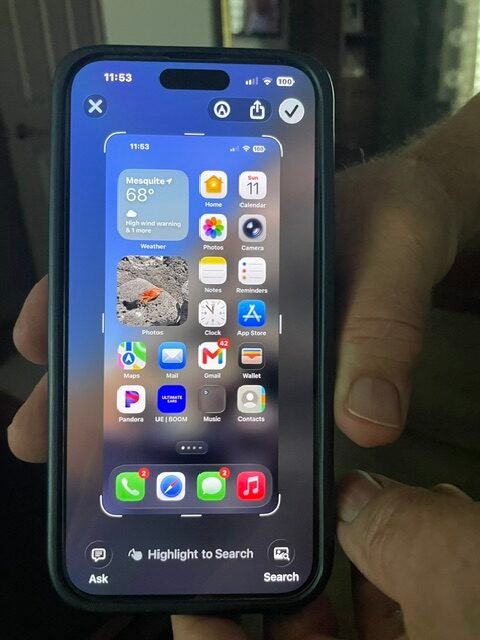
Or a larger picture fills your screen.
That’s what happens on Cary’s iPhone 15.
Look for the check mark (✓) near the top-right corner.
Tap it.
A menu will appear.
Tap Save to Photos.
On an iPad, you may also see options to edit, share, or save your screenshot.
Step 3 — Where Did My Screenshot Go?
Open the Photos app. Look for the colorful flower symbol.
Your screenshot should appear among your recent pictures.
Can’t find it? In the photos app, tap Collections, scroll to Media Types, then tap Screenshots.
Want to Send It to Someone?
Open your screenshot in Photos.
Tap the Share button (a square with an arrow pointing upward).
Choose Messages or Mail.
Select the person and send it.
One Last Thing
Phones and tablets come in many models, and their software changes over time. Your screen or buttons may look a little different from those shown here, but the basic steps are the same for most iPhones and iPads.