
YOUR PHOTOS, YOUR PHONE AND THE CLOUD — How do they actually all work together, or not!
by Cary and Patty ~ My Simply Sage
I thought I understood where the pictures on my phone were stored. I didn’t. I was amazed and confused. So I started looking and learning.
(Note; this article turned out to be longer than I expected or even wanted, but to do the subject justice it had to turn out as written here. If you’ve ever been curious about the subject or are constantly being bugged to buy more cloud storage, this article will be beneficial to you.)
I happen to use an iPhone, so in my case I was looking at Apple’s iCloud. If you use an Android phone, you’re probably dealing with Google Photos and your Google account instead.
Different names. Different buttons. But pretty much the same question:
Where are my pictures actually stored?
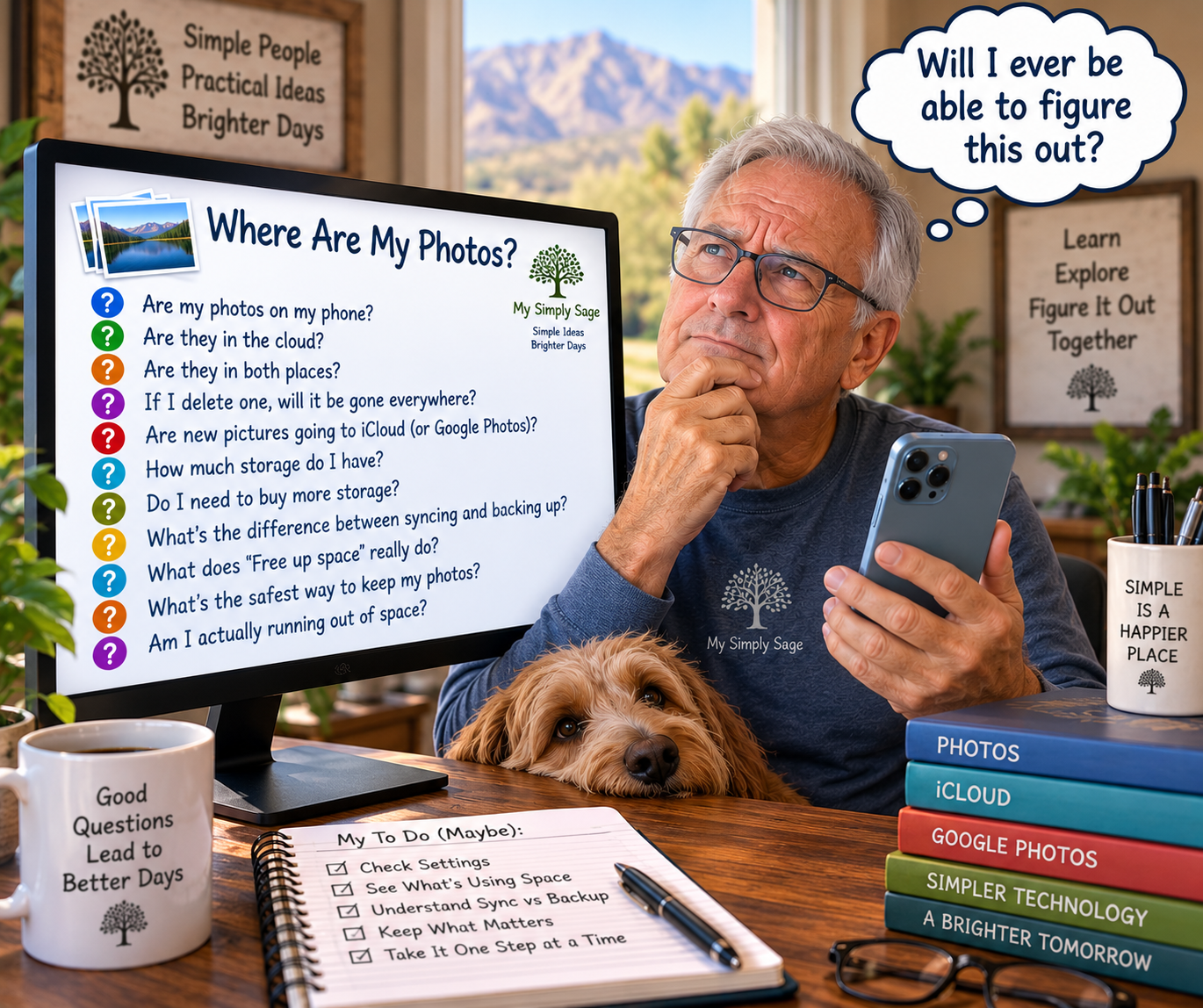
Are they on my phone? Are they in the cloud? Are they in both places?
And if I delete one from my phone, did I just delete it from the cloud too?
Now this is where things start getting confusing. At least for me they were.
It turns out that phone storage, cloud storage, syncing and backing up are all related — but they aren’t the same thing. Once I started to understand that, the whole thing started becoming considerably simpler.
FIRST — YOUR PHONE IS ONE PLACE STUFF IS STORED
Whether you have an iPhone or Android, the phone itself has physical storage.
Mine happens to have 256 GB. Yours may have more or less. When you take a picture or video, it is stored on the phone, although your cloud-photo settings can affect whether the phone later keeps the full-size original or a smaller optimized version.
Now before you start deleting pictures because your phone suggests that you “free up space,” there’s a pretty good question to ask:
Am I actually running out of space? In my case, I wasn’t.
My iPhone had about 159 GB still available. So despite some helpful suggestions about things I could delete, there wasn’t any reason for me to delete anything. (UGH… MB, GB all technical jargon for space essentially. In our conversation here, these are really pretty good size numbers).
THE CLOUD IS ANOTHER PLACE
This is where Apple and Google enter the picture. If you have an iPhone, you may use iCloud Photos. If you have an Android phone, you’re very likely to encounter Google Photos. (Note; Google Photos can also be used on an iPhone.) So the cloud gives you online storage and can make your pictures available on other devices.
Sounds simple enough. Except I discovered something.
My iCloud account told me that 1,555 photos and 107 videos were securely stored in iCloud. Naturally, I figured the pictures I was currently taking were going there too. But then I realized I didn’t actually know.
Were new pictures automatically going to iCloud? Was iCloud just holding older pictures? Was everything on my phone also in the cloud?
That’s when a light finally came on. Instead of assuming I knew what the cloud was doing, I needed to look at the settings and find out what the heck is really going on.
CLOUD STORAGE AND SYNCING AREN’T THE SAME THING (I know, complicated. Just bear with me.)
Think of syncing as keeping libraries connected. When Apple’s iCloud Photos synchronization is turned on, changes you make to your photo library can be reflected across your Apple devices and iCloud. That means all of your devices can share the info. Photos, documents etc.. Google Photos also keeps an online photo library, although its controls and terminology are somewhat different.
It’s understanding this:
Before deleting a picture, know whether you’re deleting only the copy on your phone or deleting it from your cloud photo library too. That distinction matters.
SOOO, BE VERY CAREFUL WITH THAT DELETE BUTTON
This is where I got myself into trouble once.
I had pictures that I thought were safely “in the cloud.” So I deleted some from my phone in an attempt to make some space.
Guess what? They disappeared. Gone!
With Apple’s iCloud Photos turned on, (a setting on your phone easily changed) deleting a photo from the Photos app deletes it from iCloud Photos and all other devices syncing that same iCloud Photos library as well.
Google Photos has its own controls, and this is where Android users should pay particular attention.
Using the regular Delete function in Google Photos can remove a photo from your Google Photos library and, depending on your device and settings, from the device as well, but it also has a feature called “Free up space on this device.” That feature is intended to remove local copies from the phone after they’ve been backed up to Google Photos, while leaving the backed-up pictures available through Google Photos.
Those are two very different actions. DELETE and FREE UP SPACE are not necessarily the same thing. And that’s worth understanding before pushing either/any button.
NEXT: SYNC IS NOT THE SAME AS BACKUP
This may have been the most useful thing I learned all afternoon.
SYNC = keeps things together. All devices seeing the same thing. Phone, computer, tablet.
BACKUP = keeps another copy someplace.
A synchronized cloud photo library is wonderfully convenient. Take a picture with your phone and it can become available on your other devices. That’s one of the great advantages of iCloud Photos and Google Photos. But an independent backup has a different job. It’s there so that if something happens to one copy, you’ve still got another one somewhere else.
OK, SO MY NEW RULE
This one is going to stick around My Simply Sage:
COPY → VERIFY → DELETE
COPY the photo or video somewhere safe. (that’s a story for another day)
VERIFY the copy. Actually open the photograph. Play the video. Make sure it really works.
And only then, if you actually want or need the extra space, consider deleting the original.
NOW WHERE HAVE WE FINALLY ARRIVED?
After an afternoon of poking around through phones, computers, cloud storage and one old hard drive, this became much simpler than it first appeared.
Your phone is one place to store pictures.
The cloud is another place.
Syncing keeps photo libraries connected.
And a backup gives you another copy for safekeeping.
And you don’t necessarily need every option. The important thing is knowing which ones you’re actually using before you start doing anything.
If you’re not sure, don’t start by cleaning things up.
Start by looking.
Find out how much storage your phone or computer actually has. Find out whether your photos are going to iCloud or Google Photos. Find out what happens when you press Delete. (DO NOT do this with something you absolutely want to keep!)
And if something is important enough that you would hate to lose it, consider keeping another copy somewhere else.
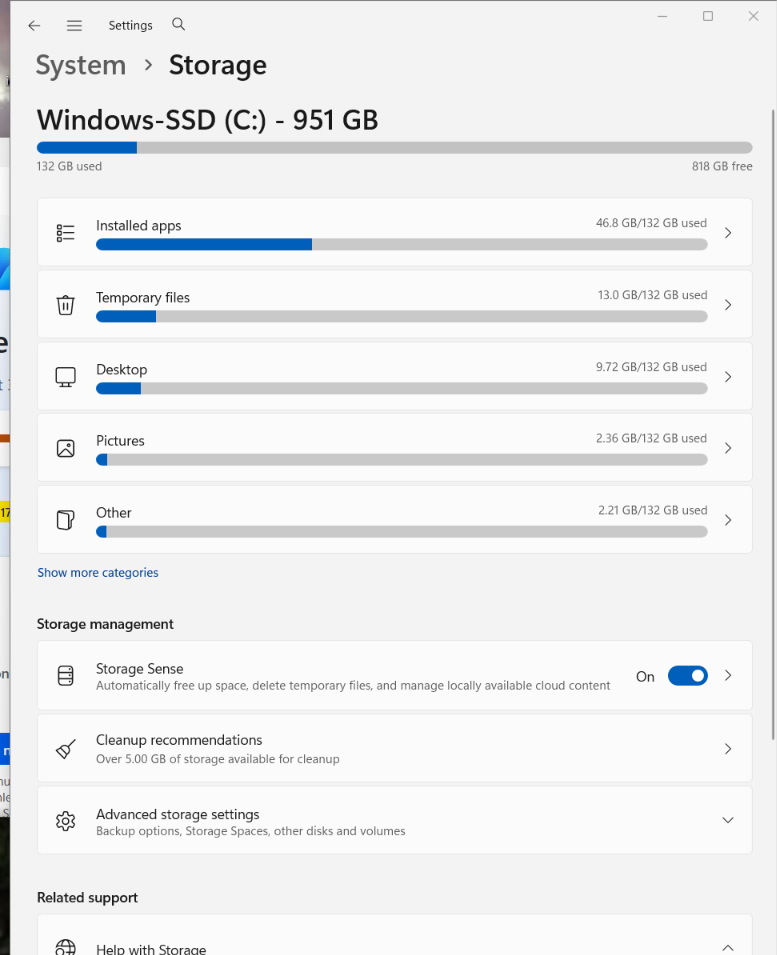
You don’t need to become a cloud-storage expert. You just need to understand what your own phone is doing before you start deleting things—or paying somebody for more storage.
This is not the end of this tale so..Stay tuned.
Simple is not where you start, simple is where you arrive!